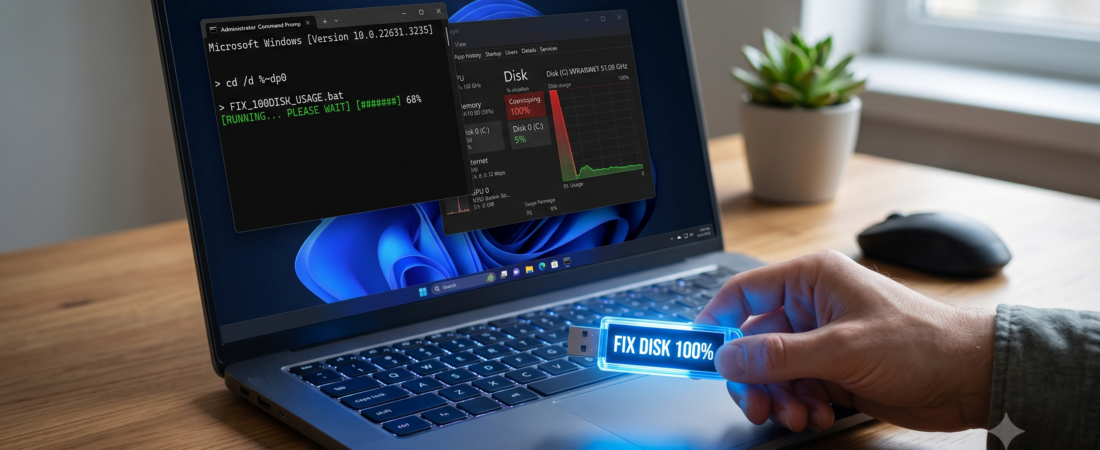
Windows 11 performance often degrades significantly. Task Manager shows 100% disk usage constantly. This issue causes heavy system lag. It freezes active desktop applications frequently. Both HDDs and SSDs suffer from this bottleneck. Background system services usually cause the underlying issue. Corrupted system files also trigger this operating system flaw.
Manual system troubleshooting can take hours. An automated script resolves this problem immediately. This guide provides a comprehensive 1-click batch file. It optimizes your operating system configurations instantly.
Why Does 100% Disk Usage Occur?
Background processes constantly read and write data. The storage drive becomes completely overwhelmed. Core culprits trigger this performance issue:
- SysMain Service: Preloads apps aggressively into memory.
- Windows Search: Runs continuous background file indexing.
- Telemetry Services: Logs diagnostic data constantly.
- File Corruption: Broken system files cause loops.
- Outdated Drivers: Faulty controllers degrade storage performance.
The 1-Click Batch File Solution
An automated batch script simplifies system repairs. It disables heavy background services safely. It cleans hidden storage caches instantly. It restores stable disk read-write speeds.
How to Deploy the Automation Script
Follow these step-by-step instructions carefully:
- Right-click on your empty desktop space.
- Select New from the context menu.
- Click the Text Document option.
- Copy the script code below.
- Paste the code into your file.
batch
@echo off
:: Title: Windows 11 Disk Usage Optimizer (2026 Edition)
:: Permissions: Requires Administrator Privileges

echo Checking administrative access...
net session >nul 2>&1
if %errorLevel% == 0 (
    echo Administrative privileges confirmed.
) else (
    echo Error: Please run as administrator.
    pause
    exit
)

echo Stopping heavy background storage services...
net stop SysMain /y
net stop WSearch /y
net stop DiagTrack /y

echo Disabling services from startup permanently...
sc config SysMain start= disabled
sc config WSearch start= disabled
sc config DiagTrack start= disabled

echo Repairing corrupted component stores...
DISM.exe /Online /Cleanup-Image /RestoreHealth
sfc /scannow

echo Clearing temporary system files...
del /q /f /s %TEMP%\*
del /q /f /s %systemroot%\Temp\*

echo Optimizing connected storage volumes...
defrag %systemdrive% /O /U

echo Optimization process finished successfully.
echo Please reboot your computer now.
pause
Use code with caution.
- Click the File menu option.
- Choose the Save As command.
- Enter filename exactly as
DiskFix.bat. - Set Save as type to All Files.
- Right-click the saved
DiskFix.batfile. - Choose the Run as administrator option.
Manual Troubleshooting Alternatives
Some users prefer manual operating system adjustments. You can modify individual configurations directly.
1. Disabling SysMain via Services Console
SysMain often triggers extreme storage spikes.
- Press Windows Key + R.
- Type
services.mscinto the box. - Press the Enter key launcher.
- Locate the SysMain service name.
- Right-click the service name.
- Open the Properties configuration window.
- Set Startup type to Disabled.
- Click the Stop operation button.
- Click Apply then OK.
2. Optimizing Virtual Memory Allocation
Incorrect pagefile management causes drive thrashing.
- Open Advanced System Settings app.
- Navigate to the Advanced tab.
- Click Performance Settings button.
- Select secondary Advanced tab options.
- Click Virtual Memory Change button.
- Uncheck Automatically manage paging file size.
- Select your main system drive.
- Choose the Custom size option.
- Calculate values based on RAM.
- Set initial size to 1.5x RAM.
- Set maximum size to 3x RAM.
- Save your adjustments carefully.
- Restart the computer immediately.
3. Removing Hidden OS Bloatware
Background applications execute constant storage checks. Systematic app uninstallation helps.
- Open the Windows Settings panel.
- Click the Apps category tab.
- Select the Installed apps sub-menu.
- Identify unused software packages.
- Click the three-dot options menu.
- Select the Uninstall command button.
- Disable unneeded startup applications entirely.
4. Running Hard Drive File Checks
File system corruption triggers endless read operations.
- Open Command Prompt as administrator.
- Type the check disk command.
- Use
chkdsk C: /f /rcommand. - Press Enter to initialize scan.
- Type Y to schedule reboot scan.
- Restart your computer hardware.
Advanced Storage Hardware Diagnostics
Persistent 100% usage might indicate hardware failure. Mechanical hard drives face physical degradation often. Consider upgrading to a fast SSD drive. SSD hardware handles modern Windows processing easily. Always keep device storage controllers updated.
Conclusion
High disk usage ruins operating system responsiveness. Our 1-click batch script automates standard optimization tasks. It eliminates intensive background data thrashing instantly. Your Windows 11 PC will run faster. Regular cache cleaning prevents future storage spikes.